
draw_rectangle
Aim:
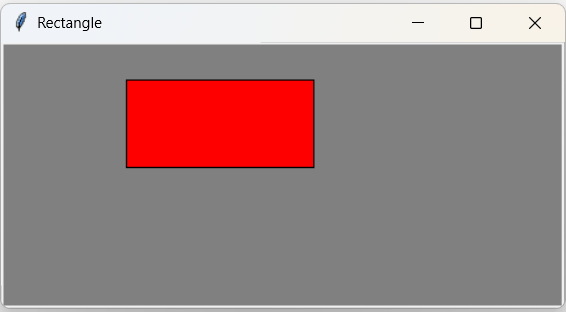
☛ Add an attribute named color to your Rectangle objects and modify draw_rectangle so that it uses the color attribute as the fill color.
Solution :
PROGRAM: (fill_rectangle.py)
from tkinter import *
# Create an instance of tkinter frame
root = Tk ()
# Create Title
root.title(" Rectangle ")
# create canvas object
widget = Canvas(root, width = 700 , height = 400 , bg = "grey")
#function
def draw_rectangle(windget,rect):
	print(rect)
# Read Co-ordinates
x1 = int(input(" Enter x1 value = " ))
y1 = int(input(" Enter y1 value = " ))
x2 = int(input(" Enter x2 value = " ))
y2 = int(input(" Enter y2 value = " ))
# create object for rectangle
rect = widget.create_rectangle(x1,y1,x2,y2,fill="red")
# call function by passing canvas & rectangle objects as argument
draw_rectangle(widget,rect)
widget.pack()
root.mainloop()
OUTPUT:
 Enter x1 value = 100
 Enter y1 value = 30
 Enter x2 value = 250
 Enter y2 value = 100
💻 Run This Python Program
draw_rectangle
The selected Python program is loaded
automatically into the editor.
Edit the program, provide input if required
and click Run.
The compiler is embedded using OneCompiler.
Your Python program runs inside the embedded
Python environment; Study Glance does not execute
Python code directly on your web server.
Related Python Lab Programs
🐍
Python Basics
1.
Use a web browser to go to Python website http://python.org. Start Python interpreter and type help().
View Solution →
3.
Write a Python program to calculate compound interest for given principal amount, rate of interest and number of periods.
View Solution →
4.
Write a Python program to read name, address, email and phone number through keyboard and print them.
View Solution →
6.
Write a Python program to check whether the given input is a digit, lowercase letter, uppercase letter or special character.
View Solution →
7.
Write a Python program to print all prime numbers in a given interval using break.
View Solution →
📋
Arrays, Lists and Tuples
4.
Write a Python function is_sorted() to check whether the elements of a list are sorted.
View Solution →
5.
Write a Python function has_duplicates() to check whether a list contains duplicate elements.
View Solution →
6.
Write a Python function remove_duplicates() to remove duplicate elements from a list.
View Solution →
🔤
Strings and Dictionaries
1.
Write a Python program to add single-letter words such as I, a and an empty string to a given word list.
View Solution →
3.
Write a Python program to add a comma between every character of a string. Example: Apple → A,p,p,l,e.
View Solution →
5.
Write a Python function to capitalize the first letter of each word in a sentence and convert the remaining letters to lowercase without built-in functions.
View Solution →
🔁
Recursion and Matrices
1.
Write a recursive Python function to generate all binary strings of n-bit length.
View Solution →
⚙️
Modules, Exceptions and Classes
1.
Create a Python module and demonstrate its use with geometric shapes and operations.
View Solution →
3.
Define draw_rectangle(Canvas, Rectangle) and write a Python program to draw a rectangle.
View Solution →
4.
Add a color attribute to the Rectangle class and modify draw_rectangle() to draw a colored rectangle.
Current
6.
Create a Circle class and write a Python program with draw_circle() to draw a circle.
View Solution →
📁
Validation and File Handling
3.
Write a Python program to open a file, check whether specified words are present and display the words when found.
View Solution →
4.
Write a Python program to read a text file and find the word with the most number of occurrences.
View Solution →
5.
Write a Python program to find the number of words, vowels, blank spaces, lowercase letters and uppercase letters in a text file.
View Solution →
📊
Python Libraries, Logic Gates and GUI
4.
Create a GUI window wizard with two text labels, two text fields, Submit and Reset buttons.
View Solution →